Showing posts with label TIPS & HOW-TO. Show all posts
Showing posts with label TIPS & HOW-TO. Show all posts
Sunday, December 6, 2015
How To Hard Reset Microsoft Lumia 535
There are the steps that you should follow to perform a Hard Reset using hardware keys in your Microsoft Lumia 535.Do this method if you can't access setting to manually reset it to factory default setting to fix software problem you may encounter in your smartphone.
Warning:Make sure the battery is fully charged and Make sure you have already back-up your important data because by doing this method all data save in phone will completely deleted.
You May Like This:Microsoft Lumia 535
1.First, Turn off the phone
2.Press and hold the Power button until the phone vibrate. Release after you feel vibration
3.Press and hold the Volume Down button, and wait until you see an exclamation mark on the screen to release the button.
4.Next, press and release these buttons in sequence: Volume Up >> Volume Down >> Power button >> Volume Down.
5.You should see a gear on the screen. Wait three to five minutes until the process is done.
6.Follow on screen to continue using phone
That's it!Hope I help you in this tutorial.
Warning:Make sure the battery is fully charged and Make sure you have already back-up your important data because by doing this method all data save in phone will completely deleted.
You May Like This:Microsoft Lumia 535
Hard Reset Microsoft Lumia 535
 |
| Hard Reset Microsoft Lumia 535 |
1.First, Turn off the phone
2.Press and hold the Power button until the phone vibrate. Release after you feel vibration
3.Press and hold the Volume Down button, and wait until you see an exclamation mark on the screen to release the button.
4.Next, press and release these buttons in sequence: Volume Up >> Volume Down >> Power button >> Volume Down.
5.You should see a gear on the screen. Wait three to five minutes until the process is done.
6.Follow on screen to continue using phone
That's it!Hope I help you in this tutorial.

Samsung Galaxy Note Edge Hard Reset Steps
These are the steps that you should follow to perform a hard reset in your Samsung Galaxy Note Edge.Perform a hard reset using hardware keys if you want to reset to factory default settings if you can't access setting to manually reset it.
These are the following problems may fix once the hard reset is completed.
Warning:Make sure the battery is fully charged and make sure you have already have a back-up of your important data because by doing this method will completely wiped your data,messages,contacts and newly installed applications.
If the device menus are frozen or unresponsive, you can master reset using hardware keys. To perform a master reset, follow these steps:
1.Press and hold the following three buttons at the same time:
2.When the phone vibrates, release the Power and Home key but continue to press and hold the Volume Up key.
3.When the Android System Recovery screen appears, release the Volume Up keys.
4.Press the Volume down key several times key to select 'wipe data / factory reset.'
5.Press Power button to select.
6.Press the Volume down key until 'Yes -- delete all user data' is highlighted.
7.Press Power button to select and start the master reset.
8.When the master reset is complete, 'Reboot system now' is highlighted.
9.Press the Power key to restart the device
10.Follow on screen to continue using phone.
Don't Forget to like us on Facebook and Follow us on Google+
These are the following problems may fix once the hard reset is completed.
- Forgotten Pattern Password
- Forgotten Pin Password
- Gmail Account
- Freezes
- Hangs
- Just want to sell it
Warning:Make sure the battery is fully charged and make sure you have already have a back-up of your important data because by doing this method will completely wiped your data,messages,contacts and newly installed applications.
 |
| Samsung Galaxy Note Edge Hardware Buttons |
Samsung Galaxy Note Edge Hard Reset Steps
Use Internal Settings
- Back up all data on the internal memory.
- From any Home screen, tap Apps.
- Tap Settings.
- Scroll to 'USER AND BACKUP,' then tap Backup and reset.
- If desired, tap Automatic restore to clear the check box.
- If desired, tap Back up my data to clear the check box.
- Tap Factory data reset.
- Tap Reset device.
- If you have screen lock turned on, enter your PIN or password.
- Tap Continue.
- Tap Delete all.
Use Hardware Keys
If the device menus are frozen or unresponsive, you can master reset using hardware keys. To perform a master reset, follow these steps:
1.Press and hold the following three buttons at the same time:
- Volume Up key
- Home key
- Power key.
2.When the phone vibrates, release the Power and Home key but continue to press and hold the Volume Up key.
3.When the Android System Recovery screen appears, release the Volume Up keys.
4.Press the Volume down key several times key to select 'wipe data / factory reset.'
5.Press Power button to select.
6.Press the Volume down key until 'Yes -- delete all user data' is highlighted.
7.Press Power button to select and start the master reset.
8.When the master reset is complete, 'Reboot system now' is highlighted.
9.Press the Power key to restart the device
10.Follow on screen to continue using phone.
Don't Forget to like us on Facebook and Follow us on Google+
How To Hard Reset Nokia X Dual SIM (RM-980)
These are the steps that you should follow to perform a Hard Reset using hardware keys in your Nokia X Dual SIM (RM-980).This method is used to reset mobile its orignal settings and all data on mobile memory like massages and contacts etc will be erased permanently, So it is necessary to take backup of data on computer. Memory card data will be safe and not deleted. You can reset mobile in case of slow speed of operating system and hanging problem.
1.Turn off your cellphone
2.Press and hold volume up and power button together
3.Release power button when nokia logo appear and keep pressing volume up button
4.Select with volume keys “wipe data/factory reset” and press power key to confirm
5.Select “Yes-delete all data” and press power to confirm
6.'Reboot System'Press power key to confirm “reboot”
7.Wait until the phone restarts
8.Follow on screen to continue using phone
That's It Very Easy!
Hard Reset Nokia X Dual SIM (RM-980)
2.Press and hold volume up and power button together
3.Release power button when nokia logo appear and keep pressing volume up button
4.Select with volume keys “wipe data/factory reset” and press power key to confirm
 |
| Wipe data/factory reset |
5.Select “Yes-delete all data” and press power to confirm
6.'Reboot System'Press power key to confirm “reboot”
7.Wait until the phone restarts
8.Follow on screen to continue using phone
 |
| Follow on screen |
That's It Very Easy!
Saturday, December 5, 2015
How To Root ArcMobile Prime 402D Using iRoot
These are the instructions to root ArcMobile Prime 402D using iRoot software.Just Follow below step by steps procedures to root your ArcMobile Prime 402D.
Downloads:
iRoot
Drivers Auto-installer
Requirements:Your ArcMobile Prime 402D should have atleast 50-60 percent of battery to perform the rooting process.
2.Download and Install iRoot in your PC
3.Open iRoot Software
4.Connect Your phone to the USB Cable and wait until detected by iRoot
5.After fully detected by iRoot,Click the root button
6.Wait now until root process success and your phone will automatically reboot
Here's The Video:
7.Now,to make sure you have successfully rooted your ArcMobile Prime 402D,Open applications menu on your ArcMobile Prime 402D and find Kinguser App.If this app exist on your phone then it means you have successfully rooted your device.Congratulations.
Optional:You can also verify that your device is successfully rooted or not by Root Checker Application.
Downloads:
iRoot
Drivers Auto-installer
Requirements:Your ArcMobile Prime 402D should have atleast 50-60 percent of battery to perform the rooting process.
Root ArcMobile Prime 402D Using iRoot
1.Download and Install the drivers of your phone2.Download and Install iRoot in your PC
3.Open iRoot Software
4.Connect Your phone to the USB Cable and wait until detected by iRoot
5.After fully detected by iRoot,Click the root button
6.Wait now until root process success and your phone will automatically reboot
Here's The Video:
7.Now,to make sure you have successfully rooted your ArcMobile Prime 402D,Open applications menu on your ArcMobile Prime 402D and find Kinguser App.If this app exist on your phone then it means you have successfully rooted your device.Congratulations.
 |
| Kinguser App |
Optional:You can also verify that your device is successfully rooted or not by Root Checker Application.
 |
| Verify Root |
I hope this tutorial help you Rooted your ArcMobile Prime 402D!If you have a Question feel free to use comment below!
ASUS Fonepad7 ME175CG [K00Z] Firmware Download [Flashing]
Here's the Flashing Procedures of ASUS Fonepad7 ME175CG [K00Z].You need this tutorial if you have experienced software problems in your Asus Tablet like Hang In Logo,Freezes and Force Close..
Prerequisite:
*Minimal ADB and Fastboot
*ASUS Fonepad7 ME175CG Firmware [Lollipop] Official? [YES!]
*Pc
*USB Cable
*Common Sense
1.After Downloading Minimal ADB and Fastboot,you must Installed it in your PC.
2.Assuming you have already Downloaded the Official Firmware of the said table(Above Post).Copy to Installation Directory>(C:\Program Files\Minimal ADB and Fastboot).
3.Put Tab into Fastboot Mode by Pressing Vol Up + Power....
4.Connect your Tablet to PC using USB Cable
5.Open Minimal ADB and Fastboot... then type this command... fastboot flash all ME175CG_all_WW_user_V6.3.6.raw
6.Then,the flashing should start,you can see in your tablet that flashing start.
7.Wait until Completely Finish Flashing
 Note:At First Boot it may takes minutes just wait until Completely Boot.
Original Post by joymhel20
Prerequisite:
*Minimal ADB and Fastboot
*ASUS Fonepad7 ME175CG Firmware [Lollipop] Official? [YES!]
*Pc
*USB Cable
*Common Sense
1.After Downloading Minimal ADB and Fastboot,you must Installed it in your PC.
2.Assuming you have already Downloaded the Official Firmware of the said table(Above Post).Copy to Installation Directory>(C:\Program Files\Minimal ADB and Fastboot).
3.Put Tab into Fastboot Mode by Pressing Vol Up + Power....
4.Connect your Tablet to PC using USB Cable
5.Open Minimal ADB and Fastboot... then type this command... fastboot flash all ME175CG_all_WW_user_V6.3.6.raw
6.Then,the flashing should start,you can see in your tablet that flashing start.
7.Wait until Completely Finish Flashing

Original Post by joymhel20
Cherry Mobile Flare S2 How To Flash with Firmware [Guide]
Cherry Mobile Flare S2 How To Flash with Firmware [Guide]
TOOLS:
Micro USB
Complete MTK Drivers http://d-h.st/D0y
SP Flash tool http://adf.ly/5724890/https://drive.google.com/uc?id=0BwSi...lFtdUJibTc5QXc
Stock ROM https://mega.co.nz/#!1FRnlSDA!9q9OPC...qftvgK5oR8-DZ0
Procedures:
1.Open folder SP_Flash_Tool_v5.1352.01
2.Click Scatter-loading


How To Flash Cherry Mobile Sonic On Stock Firmware Using Sp Flash Tools
How To Flash Cherry Mobile Sonic On Stock Firmware Using Sp Flash Tools
Here's How
Proceed Flashing via SP Flash Tool
DOWNLOAD Tools,Firmware etc... below:
SP Flash Tool HERE
Sonic Firmware HERE
USB Driver HERE
1. Install USB drivers
2. Extract Sonicstockrom.zip
3. Extract SPflashtool.rar file run SP Flash Tool v3.1222.00.exe(run as admin for win7)
4. Select "Scatter-Loading" button and locate MT6575_Android_scatter.txt
5. Once loaded Select "Download"
6. Then turn off phone and remove battery, put back battery then hold volume down then plug the USB Cable Wait Until Detected and Finish Flashing.


Finish Product


How To Flash or Update SM-G355H using Odin
Below is the Procedures How To Flash or Update SM-G355H using odin.
Extract Odin ZIP file
Open Odin v.3.10.6
Reboot Phone in Download Mode (press and hold Home + Power + Volume Down buttons)
Connect phone and wait until you get a blue sign in Odin
Add the firmware file to AP / PDA
Make sure re-partition is NOT ticked
Click the start button, sit back and wait few minutes
Do the Flashing of new Firmware if you have experienced this following Problem.
*Hangs
*Hangs in Logo
*Freezes
*Force Close
*or Just want to Update to the latest Android Version of your phone.
Extract Odin ZIP file
Open Odin v.3.10.6
Reboot Phone in Download Mode (press and hold Home + Power + Volume Down buttons)
Connect phone and wait until you get a blue sign in Odin
Add the firmware file to AP / PDA
Make sure re-partition is NOT ticked
Click the start button, sit back and wait few minutes

How To Hard Reset Cherry Mobile Omega Icon
These are the steps that you should follow to perform a hard reset using hardware keys in your Cherry Mobile Omega Icon.Use this method if you have encounter software problems like freezes,hangs,force close,safe mode and hang in logo.And also works on any forgotten password.
Warning:Make sure the battery is fully charged and Make sure you have already back-up your important data because by doing this method all data save in phone will completely deleted.
2.Hold And Press Volume Up And Power Button to go to Android System Recovery
3.Use Volume Down to select wipe data/factory reset,power button to confirm
4.Select Yes-delete all user data,again power button to confirm
5.After finish wipe,reboot system now will highlight,confirm it by clicking on power button to apply changes made in phone
6.Wait until completely power on
7.Follow on screen to continue using phone
Here's The Video:
That's it very easy
 |
| Cherry Mobile Omega Icon |
Hard Reset Cherry Mobile Omega Icon
1.Power off Cherry Mobile Omega Icon2.Hold And Press Volume Up And Power Button to go to Android System Recovery
3.Use Volume Down to select wipe data/factory reset,power button to confirm
4.Select Yes-delete all user data,again power button to confirm
5.After finish wipe,reboot system now will highlight,confirm it by clicking on power button to apply changes made in phone
6.Wait until completely power on
7.Follow on screen to continue using phone
Here's The Video:
That's it very easy
How To Root Cherry Mobile Flare 2.0 Using iRoot
These are the instructions to root Cherry Mobile Flare 2.0 using iRoot software.Just Follow below step by steps procedures to root your Cherry Mobile Flare 2.0.
Downloads:
iRoot
Drivers Auto-installer
Requirements:Your Cherry Mobile Flare 2.0 should have atleast 50-60 percent of battery to perform the rooting process.
2.Download and Install iRoot in your PC
3.Open iRoot Software
4.Connect Your phone to the USB Cable and wait until detected by iRoot
5.After fully detected by iRoot,Click the root button
6.Wait now until root process success and your phone will automatically reboot
Here's The Video:
7.Now,to make sure you have successfully rooted your Cherry Mobile Flare 2.0,Open applications menu on your Cherry Mobile Flare 2.0 and find Kinguser App.If this app exist on your phone then it means you have successfully rooted your device.Congratulations.
Optional:You can also verify that your device is successfully rooted or not by Root Checker Application.
Downloads:
iRoot
Drivers Auto-installer
Requirements:Your Cherry Mobile Flare 2.0 should have atleast 50-60 percent of battery to perform the rooting process.
Root Cherry Mobile Flare 2.0 Using iRoot
1.Download and Install the drivers of your phone2.Download and Install iRoot in your PC
3.Open iRoot Software
4.Connect Your phone to the USB Cable and wait until detected by iRoot
5.After fully detected by iRoot,Click the root button
6.Wait now until root process success and your phone will automatically reboot
 |
| Successfully Rooted |
Here's The Video:
7.Now,to make sure you have successfully rooted your Cherry Mobile Flare 2.0,Open applications menu on your Cherry Mobile Flare 2.0 and find Kinguser App.If this app exist on your phone then it means you have successfully rooted your device.Congratulations.
 |
| Kinguser will appear in menu |
Optional:You can also verify that your device is successfully rooted or not by Root Checker Application.
 |
| Verify Root |
I hope this tutorial help you Rooted your Cherry Mobile Flare 2.0!If you have a Question feel free to use comment below!
How To Hard Reset Nokia Lumia 930
There are the steps that you should follow to perform a Hard Reset using hardware keys in your Microsoft Lumia 930.Do this method if you can't access setting to manually reset it to factory default setting to fix software problem you may encounter in your smartphone.
Warning:Make sure the battery is fully charged and Make sure you have already back-up your important data because by doing this method all data save in phone will completely deleted.
Use internal setting:
Resetting restores the factory settings, and erases all your personal contents, including apps you’ve purchased and downloaded. On the start screen, swipe down from the top of the screen, and tap ALL SETTINGS > about > reset your phone.
Use Hardware Keys:
1.Press and hold the Power and Volume Down keys simultaneously.
2.Release the pressed keys when phone vibrates and then immediately press and hold the volume down button until the phone displays an exclamation mark (!) on the screen.
3.Release the volume down key.
4.Then press the volume and power keys in the following order:
5.Wait for your phone to reset, during the reset you will see gears rotating on the screen for up to 5 minutes, after which the screen goes blank for ~30 seconds and then your phone will restart.
6.Follow on screen to continue using phone
That's it!!!
Warning:Make sure the battery is fully charged and Make sure you have already back-up your important data because by doing this method all data save in phone will completely deleted.
Hard Reset Nokia Lumia 930
 |
| Nokia Lumia 930 Hardware Button |
Resetting restores the factory settings, and erases all your personal contents, including apps you’ve purchased and downloaded. On the start screen, swipe down from the top of the screen, and tap ALL SETTINGS > about > reset your phone.
Use Hardware Keys:
1.Press and hold the Power and Volume Down keys simultaneously.
2.Release the pressed keys when phone vibrates and then immediately press and hold the volume down button until the phone displays an exclamation mark (!) on the screen.
3.Release the volume down key.
4.Then press the volume and power keys in the following order:
- Volume up > Volume down > Power > Volume down.
5.Wait for your phone to reset, during the reset you will see gears rotating on the screen for up to 5 minutes, after which the screen goes blank for ~30 seconds and then your phone will restart.
6.Follow on screen to continue using phone
That's it!!!
Starmobile Roar Firmware Download Link
Here's The firmware of Starmobile Roar which you will need if you have encounter software problems like Hang in logo,Rebooting,Bootloop and Dead Phone But detected in PC.Download all files below and use extractor zip software to extract the files and put in one folder in desktop to easy navigation in your PC.
Download:
Download:
Starmobile Roar Firmware

VCom Drivers
Drivers Auto Installer
Sp Flash Tools
Sp Flash Tools
After finish downloading all files put in one folder in desktop to easily navigate the files.
If you using Window 7 OS
Connect your phone in PC using Micro USB Cable in turn-off mode and open Drivers Auto Installer and run the install-window batch file.Like shown in the image.


3. If the driver is successfully installed MediaTek DA USB VCOM will appear in the New Hardware Wizard.
Drivers Auto Installer
Sp Flash Tools
Sp Flash Tools
After finish downloading all files put in one folder in desktop to easily navigate the files.
Installing Drivers
First thing first,Before you can flash/install rom in your phone you must secure first that your phone is detected in your PC.If you using Window 7 OS
Connect your phone in PC using Micro USB Cable in turn-off mode and open Drivers Auto Installer and run the install-window batch file.Like shown in the image.
The drivers will automatically installed in your PC.
If You using Window XP
Connect your phone in PC using Micro USB Cable in turn-off mode while pressing Volume Up or Volume Down.This will detect and look for the driver.
1. This is the first time that you will connect your phone and it will search for the correct driver.
2. Check include this location ... ... and click on browse. Look for USB VCOM Driver and Click on 2K_XP_COM folder if you are using Windows XP or Win7 for Windows 7 and then press OK when you are done picking the right folder for the driver.
Flashing/Install new Firmware/Stock ROM
1.Open Sp Flash tool
2.Click Scatter-loading and browse for MT6582_Android_scatter

 3.Now,check all box and manually add all files and connect your phone while turn-off mode

4.When successfully connected the progress bar will run and change it colors and wait until you dialog window saying Download Ok.

Some workarounds:
If you encounter PMT_Changed error here is what you do:
In Older Version of FlashTool
Load the scatter file
Click in Format (a new menu will popup)
Make sure that you select Format whole flash except bootloader then press OK
Connect your phone in bootmode (Turn off your device then hold Volume UP or VOLUME DOWN then insert USB)
It should detect your phone and continue to flash.
Then Click Download to fully flash your phone.
Hard Reset your phone after flashing.
In Latest version of Flashtool
Load the scatter file
Choose Format + Download (Underneath Scatter-loading file)
Then Click Download and wait until it is done flashing
For Invalid IMEI:
Your Phone/Tablet must be rooted first
Restore yong IMEI in MTKDroidTools version 2.5.3. You will have this error when you format your phone in Flashtool as I had experienced. To restore download MTKDroidTools version 2.5.3 After you extract the file. Open the green robot, you must enable the usb debugging in your phone. It is usually located in Settings>Devoloper Mode then look for usb debugging. After enabling it. Connect your phone in your computer then in MTKDroidTool click on ROOT. Wait for it to finish, then Click in IMEI/NVRAM, input 15 number in each box. Then click REPLACE. Then click Reboot or you can manually turn off your phone. Then turn your phone on again. You can see that you have fully restored your IMEI.
Some workarounds:
If you encounter PMT_Changed error here is what you do:
In Older Version of FlashTool
Load the scatter file
Click in Format (a new menu will popup)
Make sure that you select Format whole flash except bootloader then press OK
Connect your phone in bootmode (Turn off your device then hold Volume UP or VOLUME DOWN then insert USB)
It should detect your phone and continue to flash.
Then Click Download to fully flash your phone.
Hard Reset your phone after flashing.
In Latest version of Flashtool
Load the scatter file
Choose Format + Download (Underneath Scatter-loading file)
Then Click Download and wait until it is done flashing
For Invalid IMEI:
Your Phone/Tablet must be rooted first
Restore yong IMEI in MTKDroidTools version 2.5.3. You will have this error when you format your phone in Flashtool as I had experienced. To restore download MTKDroidTools version 2.5.3 After you extract the file. Open the green robot, you must enable the usb debugging in your phone. It is usually located in Settings>Devoloper Mode then look for usb debugging. After enabling it. Connect your phone in your computer then in MTKDroidTool click on ROOT. Wait for it to finish, then Click in IMEI/NVRAM, input 15 number in each box. Then click REPLACE. Then click Reboot or you can manually turn off your phone. Then turn your phone on again. You can see that you have fully restored your IMEI.
How To Hard Reset Microsoft Lumia 730
There are the steps that you should follow to perform a Hard Reset using hardware keys in your Microsoft Lumia 730.Do this method if you can't access setting to manually reset it to factory default setting to fix software problem you may encounter in your smartphone.
Warning:Make sure the battery is fully charged and Make sure you have already back-up your important data because by doing this method all data save in phone will completely deleted.
Use internal setting:
Resetting restores the factory settings, and erases all your personal contents, including apps you’ve purchased and downloaded. On the start screen, swipe down from the top of the screen, and tap ALL SETTINGS > about > reset your phone.
Use Hardware Keys:
1.Press and hold the Power and Volume Down keys simultaneously.
2.Release the pressed keys when phone vibrates and then immediately press and hold the volume down button until the phone displays an exclamation mark (!) on the screen.
3.Release the volume down key.
4.Then press the volume and power keys in the following order:
5.Wait for your phone to reset, during the reset you will see gears rotating on the screen for up to 5 minutes, after which the screen goes blank for ~30 seconds and then your phone will restart.
6.Follow on screen to continue using phone
That's it!!!
Warning:Make sure the battery is fully charged and Make sure you have already back-up your important data because by doing this method all data save in phone will completely deleted.
Hard Reset Microsoft Lumia 730
 |
| Microsoft Lumia 730 Hardware Keys |
Resetting restores the factory settings, and erases all your personal contents, including apps you’ve purchased and downloaded. On the start screen, swipe down from the top of the screen, and tap ALL SETTINGS > about > reset your phone.
Use Hardware Keys:
1.Press and hold the Power and Volume Down keys simultaneously.
2.Release the pressed keys when phone vibrates and then immediately press and hold the volume down button until the phone displays an exclamation mark (!) on the screen.
3.Release the volume down key.
4.Then press the volume and power keys in the following order:
- Volume up > Volume down > Power > Volume down.
5.Wait for your phone to reset, during the reset you will see gears rotating on the screen for up to 5 minutes, after which the screen goes blank for ~30 seconds and then your phone will restart.
6.Follow on screen to continue using phone
That's it!!!
Huawei Ascend G7 Hard Reset
These are the steps that you should follow to perform a hard reset in your Huawei Ascend G7.If you having a problems in your Huawei Ascend G7 ?Like freezes,hangs,lags or even you forgot your password or pattern password or any related software problem you may encounter in your Huawei Ascend G7 can be easily and quickly resolved once a hard reset is being completed.This tutorial will guide you steps that you should follow to perform a hard reset.
Warning:By doing this all important data save in your phone like messages,contacts and newly installed applications will all erased,so be sure you have already back-up your important data before performing this method.
Huawei Ascend G7 Hard Reset
1.Turn-Off Huawei Ascend G7
2.Press and hold the Volume keys simultaneously and Power on button
3.When in Android System Recovery,Use volume down to select wipe data/factory reset,power button to confirm
4.Select yes-delete all user data,again power button to confirm
5.Wait until complete Reset your phone, select "Reboot System now" and press Power button.
6.Now your Huawei Ascend G7 will reboot and follow on screen to continue using phone.
That's it Very easy to follow!
Warning:By doing this all important data save in your phone like messages,contacts and newly installed applications will all erased,so be sure you have already back-up your important data before performing this method.
Huawei Ascend G7 Hard Reset
 |
| Huawei Ascend G7 Hard Reset Button |
1.Turn-Off Huawei Ascend G7
2.Press and hold the Volume keys simultaneously and Power on button
3.When in Android System Recovery,Use volume down to select wipe data/factory reset,power button to confirm
4.Select yes-delete all user data,again power button to confirm
5.Wait until complete Reset your phone, select "Reboot System now" and press Power button.
6.Now your Huawei Ascend G7 will reboot and follow on screen to continue using phone.
That's it Very easy to follow!
ALCATEL ONETOUCH Pop 7 Hard Reset to Remove Forgotten Password and Gmail Account
These are the steps that you should follow to perform a hard reset in your ALCATEL ONETOUCH Pop 7.Perform a hard reset using hardware keys if you want to reset to factory default settings if you can't access setting to manually reset it.
These are the following problems may fix once the hard reset is completed.
2.Press and hold down the Volume up key and Power key at the same time until a menu screen appears. This step may take several seconds.
3.Press the Power key to select Recovery.
4.Highlight the desired Language using the Volume up / down keys.
5.Press the Power button to select the language option.
6.Use the Volume down key to navigate to Wipe data/factory reset.
7.Press the Power button to select this option.
8.Press Volume down to select "Yes -- delete all user data". Press Power button to select.
9.After 'Data wipe complete' shows near the bottom of the screen, highlight Reboot system now.
Press the Power key to reboot.
Don't Forget to like us on Facebook and Follow us on Google+
These are the following problems may fix once the hard reset is completed.
- Forgotten Pattern Password
- Forgotten Pin Password
- Gmail Accounts
- Freezes
- Hangs
- Just want to sell it
Warning:Make sure the battery is fully charged and make sure you have already have a back-up of your important data because by doing this method will completely wiped your data,messages,contacts and newly installed applications.
 |
| ALCATEL ONETOUCH Pop 7 Hardware Buttons |
ALCATEL ONETOUCH Pop 7 Hard Reset Steps:
Use Internal Setting
- From any Home screen, tap Apps.
- Tap Settings.
- Tap Backup & reset.
- Select Backup & reset and Automatic restore. Ensure you have a backup account (Google) set.
- Tap Factory data reset.
- Tap Reset tablet.
- Tap Erase everything.
Use Hardware Keys
1.Turn off the device.2.Press and hold down the Volume up key and Power key at the same time until a menu screen appears. This step may take several seconds.
3.Press the Power key to select Recovery.
4.Highlight the desired Language using the Volume up / down keys.
5.Press the Power button to select the language option.
6.Use the Volume down key to navigate to Wipe data/factory reset.
7.Press the Power button to select this option.
8.Press Volume down to select "Yes -- delete all user data". Press Power button to select.
9.After 'Data wipe complete' shows near the bottom of the screen, highlight Reboot system now.
Press the Power key to reboot.
Don't Forget to like us on Facebook and Follow us on Google+
How To Hard Reset Cherry Mobile Flare 2.0
These are the steps that you should follow to perform a Hard reset in your Cherry Mobile Flare 2.0.Do this method if you forgot any password related you put in your Cherry Mobile Flare 2.0.or fix software related problem you may encounter in your Cherry Mobile Flare 2.0 like freezes,hangs and force close.
Warning:Make sure the battery is fully charge atleast 60 percent or up and make sure you have already make a back-up of your important data.
1.Turn-Off Phone
2.Hold Volume Up and Power Button to go to Android System Recovery
3.Use Volume Down to Select wipe data/factory reset,Power Button to confirm
4.Select Yes-delete all user data
5.Reboot System
6.Wait until completely power On
Here's The Video:
That's it Very easy!
Warning:Make sure the battery is fully charge atleast 60 percent or up and make sure you have already make a back-up of your important data.
Hard Reset Cherry Mobile Flare 2.0
 |
| Hard Reset Cherry Mobile Flare 2.0 |
1.Turn-Off Phone
2.Hold Volume Up and Power Button to go to Android System Recovery
3.Use Volume Down to Select wipe data/factory reset,Power Button to confirm
4.Select Yes-delete all user data
5.Reboot System
6.Wait until completely power On
Here's The Video:
That's it Very easy!
Iview CYBERPAD 754tpc Firmware Download Link
Here's the Download link of Iview CYBERPAD 754tpc which you can use to recover your tablet from being dead boot,hang in logo,and Force close problem..
The Procedures are also found in the provided link.

Download:
Firmware
Operating System
Android 4.0 allows you to enjoy the most of your tablet. Have your favorite apps at your fingertips with a customize tablet. Making it your tablet has never been easier. You are able to do more with your tablet with the ability of multitasking. Eliminate the need to look for your favorite apps, keep all your favorite apps at your fingertips to easily access them when needed. Get the most of what the Android 4.0 Ice Cream sandwich can provide with the IView 754TPC, and it's upgradable to Android 4.1.
Storage
With an initial storage of 4GB Flash there is plenty of room to download favorite apps, games, music, movies, and much more. With the IView 754TPC you do not need to worry about running out of space. Unlike other tablets the IView 754TPC offers a micro SD card slot. If additional memory is required simply insert a Micro SD Card up to 32GB for more storage capacity. Download more games, applications, movies and photographs with the expandable storage.
Interface
USB Port:
With a Mini USB Port you are able to connect to your personal computer. Sharing has never been easier with the IView 754TPC. Connect directly and conveniently transfer files to and from your tablet to your personal computer.
Earphone & Microphone:
This unit supports 1080p Video and comes with built-in speakers and microphone.
Charging Port:
Charge your tablet with power adapter.
MENU button:
Go back to menu anytime you want, just one single button.
Return Button:
You can always go back to the previous task by pushing Return Button.
Power Button:
Turn on/off your tablet or make your tablet stand-by.
The Procedures are also found in the provided link.

Download:
Firmware
Operating System
Android 4.0 allows you to enjoy the most of your tablet. Have your favorite apps at your fingertips with a customize tablet. Making it your tablet has never been easier. You are able to do more with your tablet with the ability of multitasking. Eliminate the need to look for your favorite apps, keep all your favorite apps at your fingertips to easily access them when needed. Get the most of what the Android 4.0 Ice Cream sandwich can provide with the IView 754TPC, and it's upgradable to Android 4.1.
Storage
With an initial storage of 4GB Flash there is plenty of room to download favorite apps, games, music, movies, and much more. With the IView 754TPC you do not need to worry about running out of space. Unlike other tablets the IView 754TPC offers a micro SD card slot. If additional memory is required simply insert a Micro SD Card up to 32GB for more storage capacity. Download more games, applications, movies and photographs with the expandable storage.
Interface
USB Port:
With a Mini USB Port you are able to connect to your personal computer. Sharing has never been easier with the IView 754TPC. Connect directly and conveniently transfer files to and from your tablet to your personal computer.
Earphone & Microphone:
This unit supports 1080p Video and comes with built-in speakers and microphone.
Charging Port:
Charge your tablet with power adapter.
MENU button:
Go back to menu anytime you want, just one single button.
Return Button:
You can always go back to the previous task by pushing Return Button.
Power Button:
Turn on/off your tablet or make your tablet stand-by.
How To Hard Reset Cherry Mobile Cosmos One Plus
Cherry Mobile has officially launched its newest flagship , the Cherry Mobile Cosmos One Plus, an Octa Core, 3 GB RAM , 4G LTE smartphone for Php 13,999.
The Cherry Mobile Cosmos One Plus has a 5.5-inch with Full HD 480ppi IPS touchscreen display.It is powered by a 2.0 GHz MediaTek MT6595M octa-core CPU back by 3GB RAM and a massive 32GB internal storage and expandable thru microSD up to 64GB.
Cherry Mobile Cosmos One Plus Specs:
5.5-inch Full HD 480ppi IPS touchscreen display2.0 GHz MediaTek MT6595M octa-core CPU
3GB RAM + 32GB internal storage + microSD up to 64GB
IMG Rogue G6200 450MHz Graphics
14MP BSI rear camera with Sony IMX214 sensor + 8MP front camera
Dual-LTE (850/2100/1800 MHz) + Wi-Fi ac + Bluetooth 4.1 connectivity
2700 mAh removable battery
Android 4.4.2 KitKat OS
Dual micro SIM + Smart cover with peek notifications and clock
Now,enough talking about the phone!let's go to the tutorial that we gonna share here How To Hard Reset Cherry Mobile Cosmos One Plus.Do this method if you have encounter software problems like freezes,hangs and force close.Also you forgot the password you put in your phone and want to reset it to factory default setting or just want to reset it so that all important data save in your phone will completely deleted.
Warning:Make sure the battery is fully charge atleast 60 percent or up and make sure you have already make a back-up of your important data.
Hard Reset Cherry Mobile Cosmos One Plus
 |
| Hard Reset Cherry Mobile Cosmos One Plus |
1.Turn-Off Phone
2.Hold Volume Up and Power Button to go to Android System Recovery
3.Use Volume Down to Select wipe data/factory reset,Power Button to confirm
4.Select Yes-delete all user data
5.Reboot System
6.Wait until completely power On
That's it Very easy!
How to Root O+ 8.38 using iRoot
These are the instructions to root O+ 8.38 using iRoot software.Just Follow below step by steps procedures to root your O+ 8.38.
Downloads:
iRoot
Drivers Auto-installer
Requirements:Your O+ 8.38 should have atleast 50-60 percent of battery to perform the rooting process.
2.Download and Install iRoot in your PC
3.Open iRoot Software
4.Connect Your phone to the USB Cable and wait until detected by iRoot
5.After fully detected by iRoot,Click the root button
6.Wait now until root process success and your phone will automatically reboot
7.Now,to make sure you have successfully rooted your O+ 8.38,Open applications menu on your O+ 8.38 and find Kinguser App.If this app exist on your phone then it means you have successfully rooted your device.Congratulations.

Downloads:
iRoot
Drivers Auto-installer
Requirements:Your O+ 8.38 should have atleast 50-60 percent of battery to perform the rooting process.
Root O+ 8.38 Using iRoot
1.Download and Install the drivers of your phone2.Download and Install iRoot in your PC
3.Open iRoot Software
4.Connect Your phone to the USB Cable and wait until detected by iRoot
5.After fully detected by iRoot,Click the root button
6.Wait now until root process success and your phone will automatically reboot
7.Now,to make sure you have successfully rooted your O+ 8.38,Open applications menu on your O+ 8.38 and find Kinguser App.If this app exist on your phone then it means you have successfully rooted your device.Congratulations.

MyPhone Ocean Lite Firmware Download Link And How To Hard Reset And How To Flash Firmware Using Sp Flash Tool
MyPhone Ocean Lite Specs
Android 4.2 Jelly Bean4-inch capacitive display (480×800 WVGA), ~233ppi
1GHz dual core MediaTek MT6572M processor
Mali-400 MP1 GPU
microSD support up to 32GB
3.2-megapixel main camera, with fixed focus and LED flash
0.3-megapixel (VGA) front camera
Wi-Fi 802.11 a/b/g/n, Wi-Fi hotspot
2G: EDGE, GPRS
No 3G (to be verified)
Bluetooth
GPS, A-GPS
Dual SIM/Dual Standby

You Can Have it for ONLY 2999 Pesos
Download Here
MyPhone Ocean Lite Firmware password-Mobilesupport
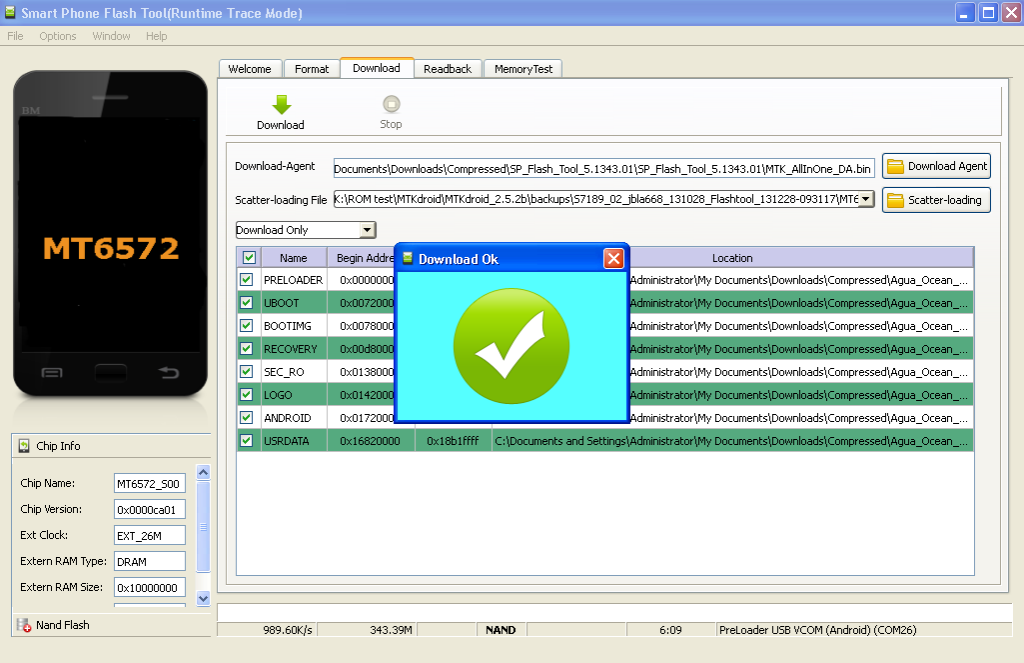
How To Flash Firmware Using Sp Flash Tools
1.Download Sp Flash Tool
2.Open SP Flash Tools
3.Load scatter file
4.Then select download only
5.Then click download
6.Insert battery on phone then insert usb cable then until success
7.When Successfully flash you can see a window with check mark
How to Hard Reset Using Hardware Keys
Perform A Hard Reset Using Hardware keys if you forgot your Pattern Password or Any Related Phone Password,By doing this all your data save in phone will completely deleted,so be sure you have already back-up your important data.Make sure also that the battery is fully Charge.
1. Turn OFF your Phone
2. Hold and Press Volume UP,Volume Down and Power Botton (Release all after you see "Up Recovery Menu/Down Fastboot)
3. Press Volume Up to go to Android System Recovery
4.Select "wipe data/factory reset" using Volume Down,Left Sensitive keys to confirm
5.Reboot System
6.Follow on screen to continue using phone
That's It
Something Wrong in my Post Feel Free to Ask using Comment Below!
Subscribe to:
Posts (Atom)