Showing posts with label STARMOBILE. Show all posts
Showing posts with label STARMOBILE. Show all posts
Sunday, December 6, 2015
Starmobile Engage 7 Lite Firmware Download Link
Here's How you can fix your Starmobile Engage 7 Lite tablet if you having problem with software related issue like freezes,force close and hang in logo or Android logo only....
MAKE A FULL BACKUP OF YOUR CURRENT ROM. (instructions to follow)
MAKE SURE ROCKCHIP USB DRIVERS INSTALLED.
*download zip from link below
*extract contents then go to extracted folder
*run/execute AndroidTool.exe
*verify check marks. only parameter, misc,kernel,boot,recovery,system and backup should be checked.
----if Engage 7 Lite is ON, connect tab to USB(make sure drivers installed already), press with to reboot into Loader mode.
----if Engage 7 Lite is OFF, hold Volome UP while connecting usb cable. then check AndroidTool, should show "Found RKAndroid Loader"
*if asks for drivers, just locate them in drivers folder
*if already in flash mode(and androidtool detects), press LowerFormat(this wipes nand)
*then press RUN to start flashing. wait for it to finish. this will auto-reboot Engage 7 Lite when done and automatically do factory reset.

*when it boots successfully to home screen, wait for about 5-10mins
*check system>storage and see if phone storage is mounted. if not, format PHONE STORAGE (settings>storage) then reboot. then check if properly mounted.
*(optional) do a factory reset so files/and folders will be properly created on internal storage/phone storage.
*Your Engage 7 Lite should now be fixed.
Download:
Starmobile Engage 7 Lite Firmware and Tools

MAKE A FULL BACKUP OF YOUR CURRENT ROM. (instructions to follow)
MAKE SURE ROCKCHIP USB DRIVERS INSTALLED.
*download zip from link below
*extract contents then go to extracted folder
*run/execute AndroidTool.exe
*verify check marks. only parameter, misc,kernel,boot,recovery,system and backup should be checked.
----if Engage 7 Lite is ON, connect tab to USB(make sure drivers installed already), press with to reboot into Loader mode.
----if Engage 7 Lite is OFF, hold Volome UP while connecting usb cable. then check AndroidTool, should show "Found RKAndroid Loader"
*if asks for drivers, just locate them in drivers folder
*if already in flash mode(and androidtool detects), press LowerFormat(this wipes nand)
*then press RUN to start flashing. wait for it to finish. this will auto-reboot Engage 7 Lite when done and automatically do factory reset.

*when it boots successfully to home screen, wait for about 5-10mins
*check system>storage and see if phone storage is mounted. if not, format PHONE STORAGE (settings>storage) then reboot. then check if properly mounted.
*(optional) do a factory reset so files/and folders will be properly created on internal storage/phone storage.
*Your Engage 7 Lite should now be fixed.
Download:
Starmobile Engage 7 Lite Firmware and Tools


Saturday, December 5, 2015
Starmobile Roar Firmware Download Link
Here's The firmware of Starmobile Roar which you will need if you have encounter software problems like Hang in logo,Rebooting,Bootloop and Dead Phone But detected in PC.Download all files below and use extractor zip software to extract the files and put in one folder in desktop to easy navigation in your PC.
Download:
Download:
Starmobile Roar Firmware

VCom Drivers
Drivers Auto Installer
Sp Flash Tools
Sp Flash Tools
After finish downloading all files put in one folder in desktop to easily navigate the files.
If you using Window 7 OS
Connect your phone in PC using Micro USB Cable in turn-off mode and open Drivers Auto Installer and run the install-window batch file.Like shown in the image.


3. If the driver is successfully installed MediaTek DA USB VCOM will appear in the New Hardware Wizard.
Drivers Auto Installer
Sp Flash Tools
Sp Flash Tools
After finish downloading all files put in one folder in desktop to easily navigate the files.
Installing Drivers
First thing first,Before you can flash/install rom in your phone you must secure first that your phone is detected in your PC.If you using Window 7 OS
Connect your phone in PC using Micro USB Cable in turn-off mode and open Drivers Auto Installer and run the install-window batch file.Like shown in the image.
The drivers will automatically installed in your PC.
If You using Window XP
Connect your phone in PC using Micro USB Cable in turn-off mode while pressing Volume Up or Volume Down.This will detect and look for the driver.
1. This is the first time that you will connect your phone and it will search for the correct driver.
2. Check include this location ... ... and click on browse. Look for USB VCOM Driver and Click on 2K_XP_COM folder if you are using Windows XP or Win7 for Windows 7 and then press OK when you are done picking the right folder for the driver.
Flashing/Install new Firmware/Stock ROM
1.Open Sp Flash tool
2.Click Scatter-loading and browse for MT6582_Android_scatter

 3.Now,check all box and manually add all files and connect your phone while turn-off mode

4.When successfully connected the progress bar will run and change it colors and wait until you dialog window saying Download Ok.

Some workarounds:
If you encounter PMT_Changed error here is what you do:
In Older Version of FlashTool
Load the scatter file
Click in Format (a new menu will popup)
Make sure that you select Format whole flash except bootloader then press OK
Connect your phone in bootmode (Turn off your device then hold Volume UP or VOLUME DOWN then insert USB)
It should detect your phone and continue to flash.
Then Click Download to fully flash your phone.
Hard Reset your phone after flashing.
In Latest version of Flashtool
Load the scatter file
Choose Format + Download (Underneath Scatter-loading file)
Then Click Download and wait until it is done flashing
For Invalid IMEI:
Your Phone/Tablet must be rooted first
Restore yong IMEI in MTKDroidTools version 2.5.3. You will have this error when you format your phone in Flashtool as I had experienced. To restore download MTKDroidTools version 2.5.3 After you extract the file. Open the green robot, you must enable the usb debugging in your phone. It is usually located in Settings>Devoloper Mode then look for usb debugging. After enabling it. Connect your phone in your computer then in MTKDroidTool click on ROOT. Wait for it to finish, then Click in IMEI/NVRAM, input 15 number in each box. Then click REPLACE. Then click Reboot or you can manually turn off your phone. Then turn your phone on again. You can see that you have fully restored your IMEI.
Some workarounds:
If you encounter PMT_Changed error here is what you do:
In Older Version of FlashTool
Load the scatter file
Click in Format (a new menu will popup)
Make sure that you select Format whole flash except bootloader then press OK
Connect your phone in bootmode (Turn off your device then hold Volume UP or VOLUME DOWN then insert USB)
It should detect your phone and continue to flash.
Then Click Download to fully flash your phone.
Hard Reset your phone after flashing.
In Latest version of Flashtool
Load the scatter file
Choose Format + Download (Underneath Scatter-loading file)
Then Click Download and wait until it is done flashing
For Invalid IMEI:
Your Phone/Tablet must be rooted first
Restore yong IMEI in MTKDroidTools version 2.5.3. You will have this error when you format your phone in Flashtool as I had experienced. To restore download MTKDroidTools version 2.5.3 After you extract the file. Open the green robot, you must enable the usb debugging in your phone. It is usually located in Settings>Devoloper Mode then look for usb debugging. After enabling it. Connect your phone in your computer then in MTKDroidTool click on ROOT. Wait for it to finish, then Click in IMEI/NVRAM, input 15 number in each box. Then click REPLACE. Then click Reboot or you can manually turn off your phone. Then turn your phone on again. You can see that you have fully restored your IMEI.
Starmobile Like Firmware Download Link
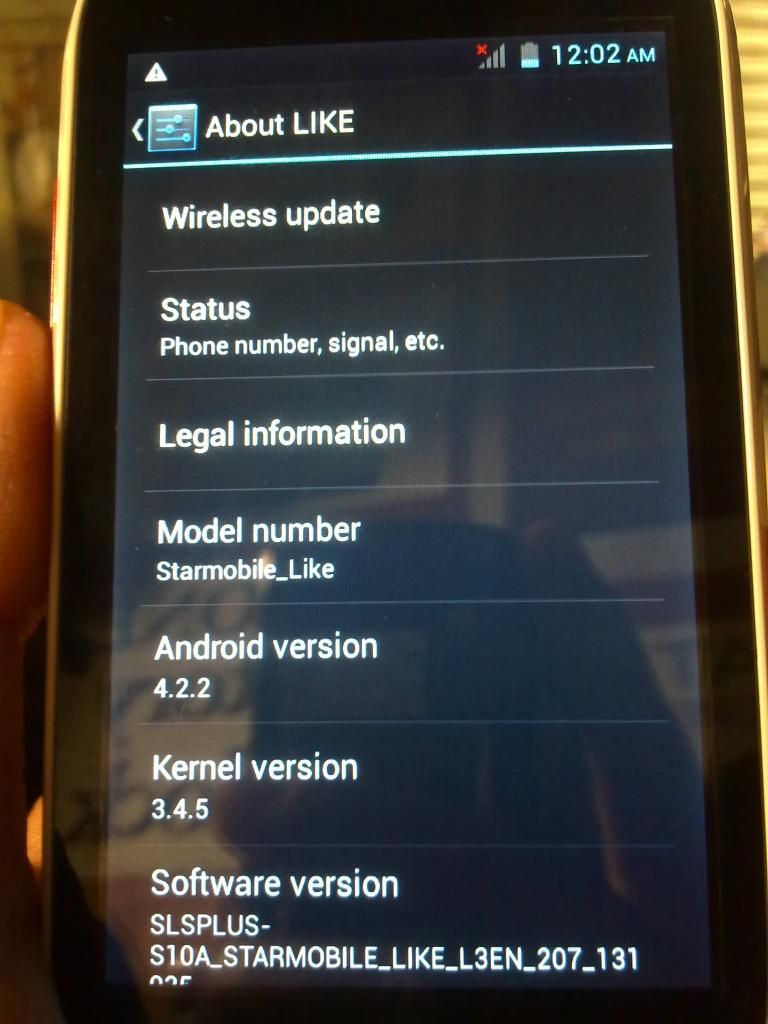
Hey Guys!I wanna share the firmware of this phone from Starmobile called Starmobile Like.I just want to share only the download link of this firmware,which you can use to flash your phone using SP Flash tools.
I have a lots of tutorial of this MTK chips powered phone,Just like this one>http://www.blpu.blogspot.com/2014/09/myphone-agua-rio-fun-firmware-download.html
or just search for another tutorial which you can find a lot of example here in this site,just your user common sense..
Also Read:
How To Hard Reset Starmobile Like
Download:
Starmobile Like Firmware
Starmobile UP Mini Hard Reset,Root and Firmware Download Link
Below is the Guide how you can hard reset your Starmobile UP Mini using Hardware Keys,How to root using iRoot Software and lastly I want to share where you can find to download the Firmware of this Smartphone from Starmobile.
Hard reset is ideal if you have forgotten your Pattern,Phone Password or any related password you that you have forgotten.
Rooting is to have more access in your Android Smartphone.
Firmware is you can use if you have problem in software like hangs,freezes boot loop and no power at all.
What this Video of my Mine
Hard reset is ideal if you have forgotten your Pattern,Phone Password or any related password you that you have forgotten.
Rooting is to have more access in your Android Smartphone.
Firmware is you can use if you have problem in software like hangs,freezes boot loop and no power at all.
How To Hard Reset?
What this Video of my Mine
How To Root Using iRoot?
Download Firmware Here
STARMOBILE OCTA ‘KITKAT’ UPDATE NOW LIVE
The most advanced 5-inch Pinoy smartphone just got even sweeter as Philippine smart devices manufacturer Starmobile makes available the official Android 4.4 “KitKat” update for the Starmobile OCTA.
Now downloadable via the built-in OTA (Over-The-Air) feature, the update boasts of a full Operating System upgrade from Android 4.2 ‘Jellybean’ to 4.4.2 ‘KitKat’.

The upgrade brings performance and compatibility enhancements that make the Starmobile OCTA work better with the latest versions of Android Apps available from the Google Play store.
Also included in the update is a new and improved camera app, which now includes a ‘Peace-to-Shoot’ option wherein users need only flash a ‘peace’ or ‘V’ sign with their fingers to activate the camera shutter.
To download the update, simply go to the Starmobile OCTA’s Settings menu and click on About Phone > Wireless Update.
A stable Wi-Fi connection is recommended along with at least 1GB of available storage space to accommodate the installation file. Once the update is finished, a full reset of the device is recommended.
For information and assistance, users may call the official Starmobile hotline at (02) 333-STAR (7827).
Now downloadable via the built-in OTA (Over-The-Air) feature, the update boasts of a full Operating System upgrade from Android 4.2 ‘Jellybean’ to 4.4.2 ‘KitKat’.
The upgrade brings performance and compatibility enhancements that make the Starmobile OCTA work better with the latest versions of Android Apps available from the Google Play store.
Also included in the update is a new and improved camera app, which now includes a ‘Peace-to-Shoot’ option wherein users need only flash a ‘peace’ or ‘V’ sign with their fingers to activate the camera shutter.
To download the update, simply go to the Starmobile OCTA’s Settings menu and click on About Phone > Wireless Update.
A stable Wi-Fi connection is recommended along with at least 1GB of available storage space to accommodate the installation file. Once the update is finished, a full reset of the device is recommended.
For information and assistance, users may call the official Starmobile hotline at (02) 333-STAR (7827).
STARMOBILE KNIGHT X V1.5 UPDATE VIA OTA
Starmobile KNIGHT X users can now download software version 1.5 via the built-in OTA (Over-The-Air) feature.
The free-to-download 22MB installation package brings performance and stability improvements designed to make the KNIGHT X even more enjoyable to use.
To download and install the update:
Go to Settings > About Phone > Wireless Update > Check for Update.
Download the update file and follow on-screen instructions.
Wait for device to restart.
Notes:
Back up all phone data before performing the update.
Battery must be at 80% capacity or higher.
Ensure there is at least 1GB of free storage space.
Do not connect the phone to a PC or charger during the update.
A stable and fast Internet connection is recommended.
Do not use the device while the update is in progress.
If the device hangs at any point during the update, press and hold the power button for 10-15 seconds. Your device will restart automatically after a few seconds.
For information and assistance, users may call the official Starmobile hotline at (02) 333-STAR (7827).
The free-to-download 22MB installation package brings performance and stability improvements designed to make the KNIGHT X even more enjoyable to use.
 |
| STARMOBILE KNIGHT X |
To download and install the update:
Go to Settings > About Phone > Wireless Update > Check for Update.
Download the update file and follow on-screen instructions.
Wait for device to restart.
Notes:
Back up all phone data before performing the update.
Battery must be at 80% capacity or higher.
Ensure there is at least 1GB of free storage space.
Do not connect the phone to a PC or charger during the update.
A stable and fast Internet connection is recommended.
Do not use the device while the update is in progress.
If the device hangs at any point during the update, press and hold the power button for 10-15 seconds. Your device will restart automatically after a few seconds.
For information and assistance, users may call the official Starmobile hotline at (02) 333-STAR (7827).
Starmobile Diamond S2 Firmware Download Link
You need this firmware/stock rom if you have encountered this kind of problem in your phone.Listed Below
1.Hang in logo
2.Rebooting
3.Bootloop
4.Dead Phone But detected in PC
Some firmware files may be zipped. Please use either WinRAR or 7-Zip to extract. If a firmware file has been divided into multiple parts, use either program to combine into a single file.


1.Hang in logo
2.Rebooting
3.Bootloop
4.Dead Phone But detected in PC
Some firmware files may be zipped. Please use either WinRAR or 7-Zip to extract. If a firmware file has been divided into multiple parts, use either program to combine into a single file.
Downloads:
VCom Drivers
Drivers Auto Installer
Sp Flash Tools
Sp Flash Tools
After finish downloading all files put in one folder in desktop to easily navigate the files.
If you using Window 7 OS
Connect your phone in PC using Micro USB Cable in turn-off mode and open Drivers Auto Installer and run the install-window batch file.Like shown in the image.
3. If the driver is successfully installed MediaTek DA USB VCOM will appear in the New Hardware Wizard...
Drivers Auto Installer
Sp Flash Tools
Sp Flash Tools
After finish downloading all files put in one folder in desktop to easily navigate the files.
Installing Drivers
First thing first,Before you can flash/install rom in your phone you must secure first that your phone is detected in your PC.If you using Window 7 OS
Connect your phone in PC using Micro USB Cable in turn-off mode and open Drivers Auto Installer and run the install-window batch file.Like shown in the image.
The drivers will automatically installed in your PC.
If You using Window XP
Connect your phone in PC using Micro USB Cable in turn-off mode while pressing Volume Up or Volume Down.This will detect and look for the driver.
1. This is the first time that you will connect your phone and it will search for the correct driver.
2. Check include this location ... ... and click on browse. Look for USB VCOM Driver and Click on 2K_XP_COM folder if you are using Windows XP or Win7 for Windows 7 and then press OK when you are done picking the right folder for the driver.
Flashing/Install new Firmware/Stock ROM
1.Open Sp Flash tool
2.Click Scatter-loading and browse for MT6572_Android_scatter
3.Now,Click Download and connect your phone while power off.
4.When successfully connected the progress bar will run and change it colors and wait until you dialog window saying Download Ok.
Some workarounds:
If you encounter PMT_Changed error here is what you do:
In Older Version of FlashTool
Load the scatter file
Click in Format (a new menu will popup)
Make sure that you select Format whole flash except bootloader then press OK
Connect your phone in bootmode (Turn off your device then hold Volume UP or VOLUME DOWN then insert USB)
It should detect your phone and continue to flash.
Then Click Download to fully flash your phone.
Hard Reset your phone after flashing.
In Latest version of Flashtool
Load the scatter file
Choose Format + Download (Underneath Scatter-loading file)
Then Click Download and wait until it is done flashing
For Invalid IMEI:
Your Phone/Tablet must be rooted first
Restore yong IMEI in MTKDroidTools version 2.5.3. You will have this error when you format your phone in Flashtool as I had experienced. To restore download MTKDroidTools version 2.5.3 After you extract the file. Open the green robot, you must enable the usb debugging in your phone. It is usually located in Settings>Devoloper Mode then look for usb debugging. After enabling it. Connect your phone in your computer then in MTKDroidTool click on ROOT. Wait for it to finish, then Click in IMEI/NVRAM, input 15 number in each box. Then click REPLACE. Then click Reboot or you can manually turn off your phone. Then turn your phone on again. You can see that you have fully restored your IMEI.
Don't Forget to like us on Facebook and Follow us on Google+
Subscribe to:
Posts (Atom)